We can’t wait to send you tons of positive resources, insights, and findings!
Here are instructions on how to make sure you receive our e-mails and messages 🙂
How To Whitelist an Email
(and what the heck that even means!)
A lot of e-mail and Internet providers are using programs to block unwanted e-mail, often called spam. But sometimes these programs end up blocking the e-mail that you actually want to receive.
We are happy these Internet Service Providers have put these blocking and filtering programs in place to protect you from spam, but the system right now can’t really tell the good guys from the bad ones. They often block e-mail you’ve requested or signed up to receive (but that fits someone else’s idea of what spam could look like).
We want you to get your positive content! You can fight the blacklists with a “white-list”
To Ensure You Are Receiving Your Positopian Emails Do The Following:
Be sure to add the corresponding Positopian email addresses to your email white list to ensure the best chance of receiving our content and updates
A whitelist is a list of accepted items or persons in a set…. a list of e-mail addresses or domain names from which an e-mail blocking program will allow messages to be received.
White-list us now, before your delivery is interrupted.
Of course, every e-mail system is different. Below are instructions for some of the more popular ones. If yours isn’t here, please contact your ISP’s customer service folks for their instructions. (Forward the answer to us, and we might add it!) If you’re using some sort of spam filtering or blocking software yourself (in addition to what your ISP provides), we’ve also listed instructions on how to exempt your subscription from some of the more popular of those programs.
Gmail:
1. In your inbox, locate an email from howdy@chewsjoy.com
2. Drag this email to the “primary” tab of your inbox.

3. You’ll see that our emails will go to your primary folder in the future!
Yahoo! Mail:
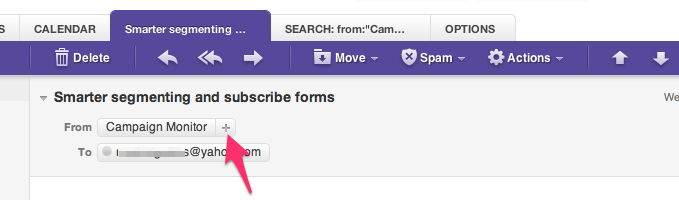
1. When opening an email message, a “+” symbol should display next to From: and the sender’s name.
2. Select this and an “Add to contacts” pop-up should appear.
3. Select “Save”:
Mac Mail:
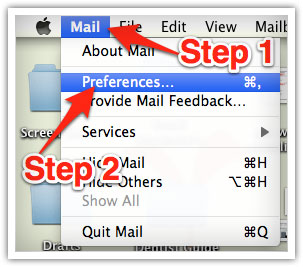
1. Select “Mail” and 2. “Preferences” from the top menu.
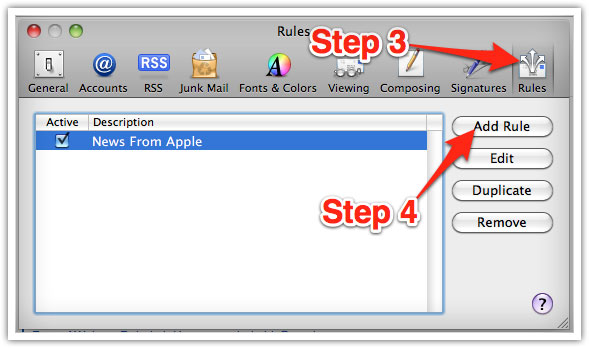
3. In the “Preferences” window, click the “Rules” icon.
4. Click the “Add Rule” button.
5. In the “Rules” window, type a name for your rule in the “Description” field.
6. Use the following settings: “If any of the following conditions are met: From Contains.”
Then type the sender’s email address in the text field beside “Contains.”
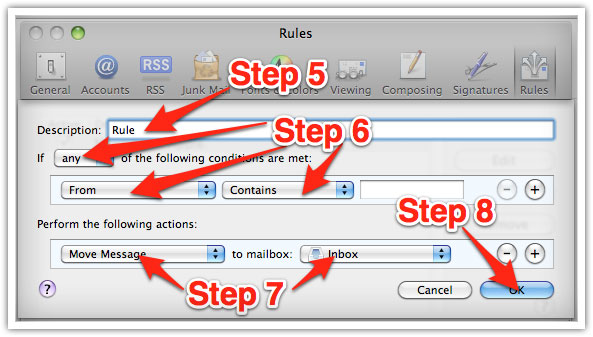
7. Select “Move Message” and “Inbox” from the drop-down menus.
8. Click “Ok” to save the rule.
Outlook 2003 & Later:
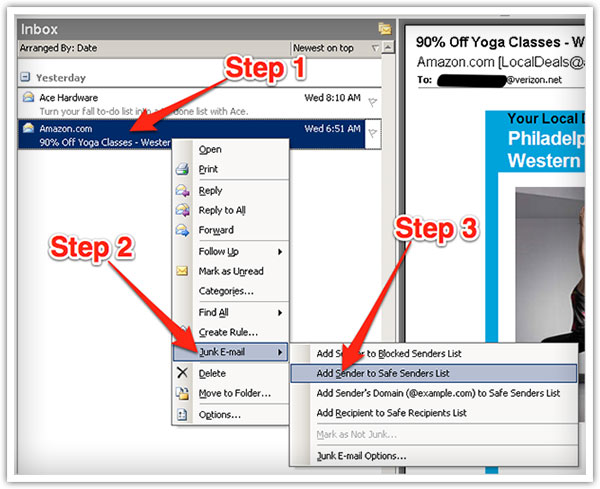
1. Right-click on the message in your inbox.
2. Select “Junk E-mail” from the menu.
3. Click “Add Sender to Safe Senders List.”